For companies
New in 14.6.0Department onboarding
Turn a department's memory into a course. The department head builds a curriculum with quizzes; a new employee types /onboard in their agent and studies lesson by lesson; the server tracks progress and grades the quizzes.
A new employee joins a department (a team on the team server), types /onboard in their agent and works through what the department already knows. The server records what they studied and when, and grades their quizzes. The department head gets the results as a report, in the agent or in the dashboard.
How a course is built
- Curriculum. One per department. It contains ordered modules, and each module contains ordered lessons. A lesson has its own text, references to records in the team’s memory, or both.
- Lessons stay current. When a lesson is opened, each referenced record is resolved to its latest version. If a lesson’s sources change after someone studied it, the lesson is flagged updated since studied and offered again for review.
- Quiz. One per module, with
single-choice,multiple-choice andopenquestions. Choice questions are graded automatically: full points for an exact match, otherwise zero. Open answers are graded by the server’s LLM if one is configured, otherwise they wait in the department head’s grading queue. - Defaults. Each module’s quiz has a pass threshold of 0.8 (80 %) and 3 attempts (up to 20). Both can be set per module in the curriculum. Every attempt is stored with a snapshot of the questions it answered.
- Progress is tracked per lesson (opened, completed, time from first open to first completion) and per quiz attempt (score, status, time).
For employees: /onboard
In Claude Code (or Codex), type:
/onboard engeng is the department’s ID. Without it, the agent lists your departments and asks which one. In other MCP clients, just ask: “Start my onboarding for the Engineering department.”
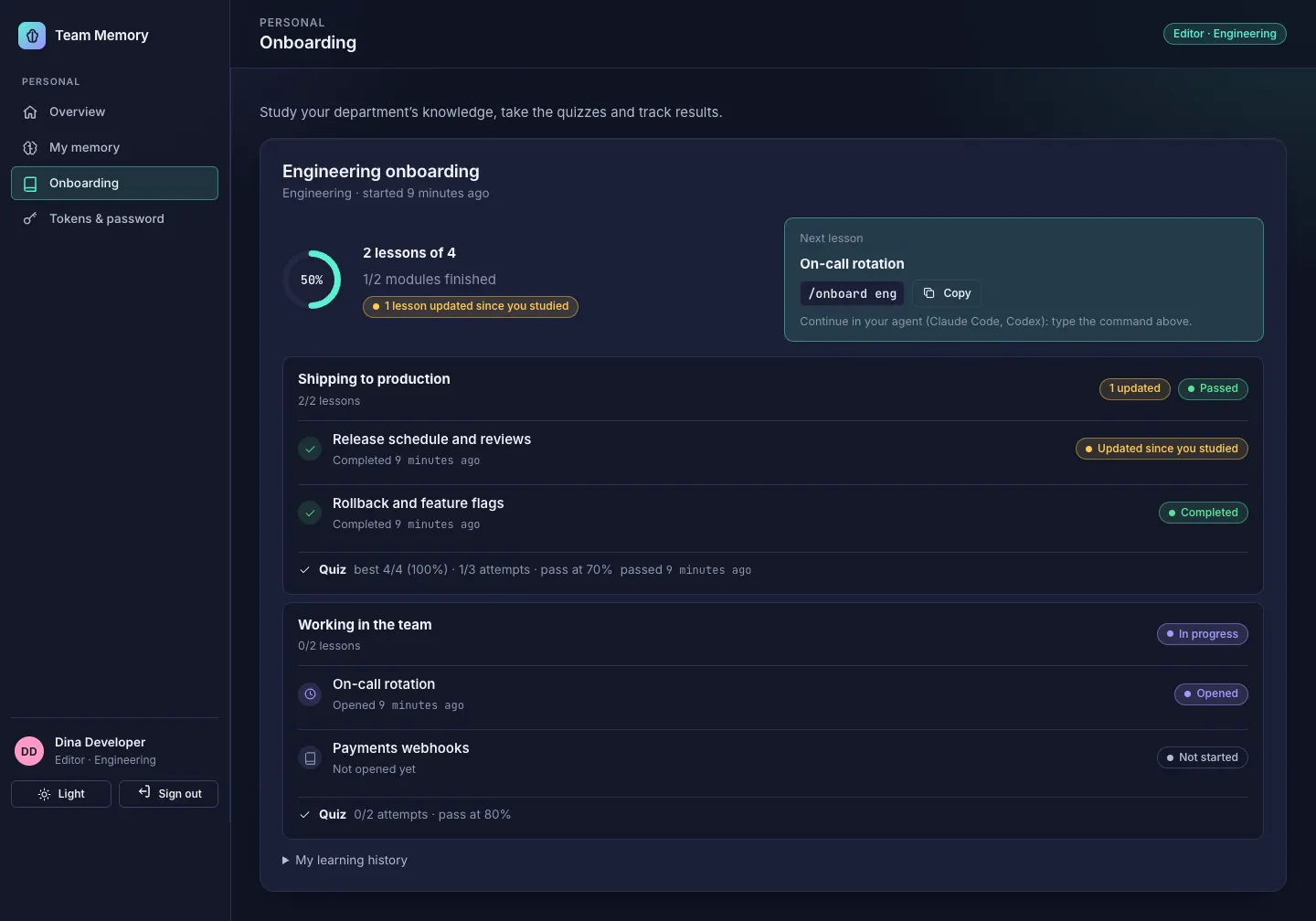
What happens:
- Start. The agent calls
onboarding_overviewto list your departments, thenonboarding_startto enrol you (or resume) and shows the plan: modules, lessons, your progress and the next step. - Study one lesson at a time.
onboarding_nextopens the next unfinished lesson with its source records inline. The agent summarises it, cites the records, and answers your questions from the lesson or withmemory_recallin the team scope. It should not invent department facts. - Mark it done. When you say you have understood, the agent calls
onboarding_complete. A lesson can be completed only after it was opened, and the agent should never complete lessons in bulk or on its own. - Take the quiz. Once every lesson of a module is complete,
onboarding_quizreturns the questions without answers. You answer them yourself; the agent must not hint or look answers up.onboarding_submitgrades the attempt and reports the score, pass or fail, and attempts left. Correct options are shown only after you pass or use your last attempt. If an answer needs review, the attempt waits for the department head. - Check progress with
onboarding_progress, or in the dashboard under Onboarding → My courses.
Short notes about completed lessons and quiz results are also saved to your own personal memory (project onboarding), so a later memory_recall by you finds them.
For department heads: /onboard-report
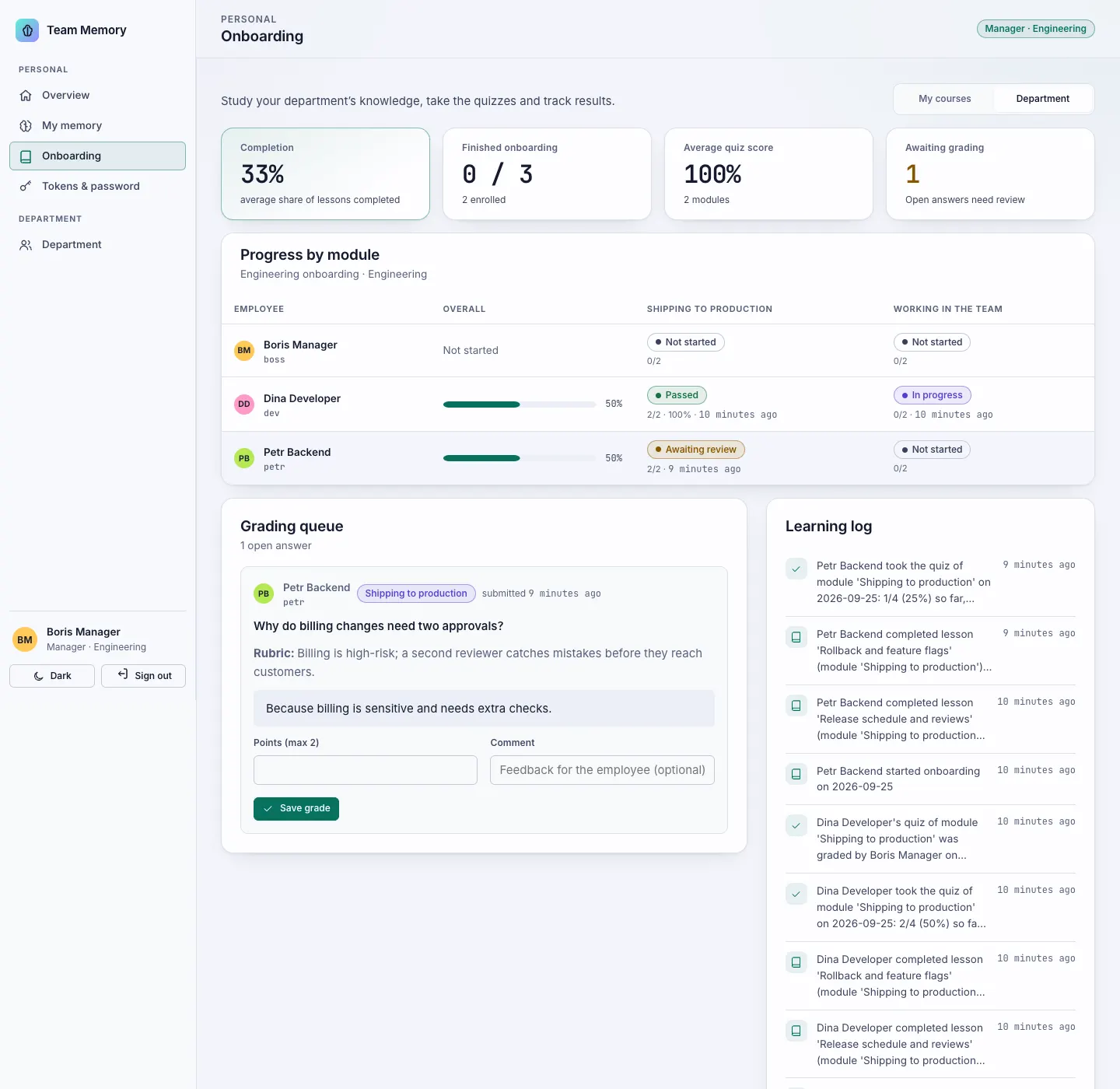
Department heads are team members with the manager role (tam-team member <user> <team> manager). In the agent, type /onboard-report eng, or open Onboarding → Department in the dashboard.
1. Draft the curriculum from team memory
Draft from team memory in the curriculum editor (or onboarding_curriculum_draft) groups the team’s active records by project and then by type, in the order conventions → decisions → solutions → lessons → facts, with at most 8 records per lesson. The same memory always gives the same draft. If the server has an LLM configured, it only rewrites titles, summaries and lesson introductions; record references stay the same. A draft is not saved until you publish it.
2. Edit and publish
In the curriculum editor you add, reorder and remove modules and lessons, write lesson text, pick source records from team memory with search, and set each module’s pass threshold and attempt limit. Publish saves it (onboarding_curriculum_set) with a revision check, so two heads cannot overwrite each other’s edits. Keep existing modules and lessons rather than recreating them: employees keep their progress, and anything you remove is archived, not deleted.
3. Write the quizzes
The quiz editor (one per module) handles single-choice, multiple-choice and open questions, the correct options, points, the related lesson, and a rubric for open questions. Draft with LLM (onboarding_quiz_draft) needs a server LLM; each generated question must quote at least three words of a lesson verbatim, and questions without such a quote are rejected. Save with onboarding_quiz_set. Both editors check the rules in the browser, and the server checks them again.
4. Grade open answers
The grading queue shows each open answer with its question and rubric. Enter points and an optional comment (onboarding_grade). Grading the last pending answer finalises the attempt; you can regrade any open answer later, and the result is recomputed.
5. Follow the team
The team report (onboarding_team_report) shows every member against every module: status (not started, in progress, quiz available, awaiting review, passed, failed), lessons done, best score, attempts and dates, plus the learning log, for example “Petr completed lesson ‘Pipeline’ (module ‘Deploy’) on 2026-09-25”. It also lists lessons updated since people studied them. The same department numbers appear as an Onboarding completion tile on the department head’s dashboard overview.
Who can see what
| Role | Study | Own progress | Others’ progress, team report | Grading queue | Edit curriculum and quizzes |
|---|---|---|---|---|---|
Team reader / editor | own department | yes | no | no | no |
Team manager (department head) | own department | yes | own department | own department | own department |
company_viewer | departments they belong to | yes | all departments | no | no |
superadmin | departments they belong to | yes | all departments | all departments | all departments |
Company viewers and superadmins also get a Company tab with completion, enrolled and finished counts, average score and pending grading per department. The server enforces these rules for MCP tools and the dashboard alike; the interface only hides controls.
Privacy
- Scores never go into team memory. Progress, quiz answers and scores live in a separate database,
learning.db, in the team server’s data directory. They are never written to team memory, where every member of the team (readers included) could recall a colleague’s results. - Only the department head of that team, company viewers and superadmins can see who studied what and how they scored. Answer texts in the grading queue are visible only to people who can grade.
- Personal memory stays private. The notes written to an employee’s personal memory are written with that employee’s own credentials. Managers never read personal memory, and personal memory is never used to build a curriculum.
- Answer keys and rubrics are returned only to people who can manage the curriculum.
- LLM grading sends the rubric, the lesson material and the answer to the provider configured on the server. The answer is marked as untrusted input. See Security model.
- Logs record event names and IDs, never answer text or tokens.
Installing the skills
/onboard and /onboard-report are agent skills that ship in the repository under skills/onboard/ and skills/onboard-report/. install.sh installs them next to the memory-protocol skill for clients with a skill API:
install.sh --ide | Installed to |
|---|---|
claude-code | ~/.claude/skills/onboard, ~/.claude/skills/onboard-report |
codex | ~/.codex/skills/… and ~/.agents/skills/… |
opencode | ~/.opencode/skills/… |
For an employee who only connects to the team server through the bridge, copy the two folders into the client’s skills directory (for Claude Code, ~/.claude/skills/). Clients without skills can use the tools directly: ask the agent to start onboarding, and it calls the onboarding_* tools.
Tools
| Tool | Who | Purpose |
|---|---|---|
onboarding_overview | anyone | Your departments with curriculum and progress, plus those you can view or manage |
onboarding_start | member | Enrol or resume; returns the plan and next step |
onboarding_next | member | Open the next (or a given) lesson with its records |
onboarding_complete | member | Mark a lesson studied (idempotent) |
onboarding_quiz | member | A module’s questions without answers |
onboarding_submit | member | Grade an attempt |
onboarding_progress | member (self); head, viewer, superadmin (others) | Progress and learning log |
onboarding_team_report | head, viewer, superadmin | Members × modules, log, grading queue (heads) |
onboarding_curriculum_get | head, superadmin (with answer keys); viewer (without) | Curriculum with revisions |
onboarding_curriculum_set | head, superadmin | Replace the curriculum |
onboarding_curriculum_draft | head, superadmin | Draft from team memory |
onboarding_quiz_set | head, superadmin | Replace a module quiz |
onboarding_quiz_draft | head, superadmin | LLM draft checked against lesson quotes |
onboarding_grade | head, superadmin | Grade or regrade an open answer |
Errors use the server’s codes: forbidden, conflict (wrong state or stale revision), unavailable (no LLM configured, or a workspace is unavailable) and invalid_request.
Backup
learning.db sits next to identity.db in the data directory (mode 0600). tam-team backup includes it, together with every memory scope, and restore restores it; nothing extra is needed. See Backup & restore.