Documentation
New in 14.6.0Setup wizard
The tam setup command asks a few questions, shows one review screen, and only then connects your AI clients or prepares a company server. A team server without an administrator shows the same kind of wizard in the browser.
There are two first-run wizards:
tam setupin the terminal. It sets up personal memory on one machine, or prepares a company server.- The web setup wizard on a team server that has no administrator yet. It appears at
/dashboard/instead of the sign-in page.
Both ask their questions first, show one review screen, and change nothing until you confirm.
Run it
tam setup                # first setup
tam setup --reconfigure  # change it later; the current values are the defaults
The first question picks the mode:
Step 1  Choose how you use it
  How will you use total-agent-memory?
    1) Just me         personal memory on this machine, for your own AI clients
    2) Company server  one shared memory server that your teams connect to
  Choose [1]:
tam setup --mode personal or --mode company skips that question. Once a setup exists, tam setup prints it and exits; use --reconfigure to change it.
The wizard stores its choices in setup.json in the memory directory (~/.tam by default, or TAM_MEMORY_DIR; TAM_SETUP_FILE overrides the path). The record never contains keys or passwords.
Mode 1: Just me
Personal memory on this machine, for your own AI clients.
| Step | What it does |
|---|---|
| Connect your AI clients | Finds Claude Code, Claude Desktop, Codex CLI, Cursor, Windsurf, Gemini CLI, Cline and OpenCode and pre-selects the ones it finds. The server is registered under the name memory. |
| Language and embeddings | Multilingual MiniLM (default, about 220 MB), multilingual-e5-large (higher quality, about 2.2 GB, slower on CPU), and BGE-M3 when sentence-transformers is installed. If you change the model on an existing store, it reminds you to run memory_rebuild_embeddings. |
| Language model (optional) | None, Ollama, OpenAI, Anthropic or OpenAI-compatible, with the same fields as the dashboard’s Providers page. Keys are typed as hidden input, and you can test the connection. |
| Hooks and skills | Offered only from a git checkout. Installs the Claude Code hooks and the memory-protocol, onboard and onboard-report skills for Claude Code and Codex. Existing hook scripts and entries are kept. |
| Review | Shows every choice. Nothing is written until you answer yes. |
Where keys go. Into the env block of the MCP entry in each chosen client, which is where TAM reads them. Any config file that receives a key is set to mode 0600. On --reconfigure, pressing Enter at the key prompt keeps the current key.
Check. After applying, the wizard starts the registered server on a throwaway memory directory and runs the MCP handshake, for example “OK: the server started and offered 77 tools in 1.6 s”. Your real memory is not touched. --skip-verify skips this.
Config files are edited safely. Each file is parsed strictly; if one does not parse, the wizard stops before writing anything and names the file. Other MCP servers, unrelated keys and env variables it does not manage are kept. Every file is written to a temporary file and renamed into place. For Claude Code the wizard edits ~/.claude.json directly instead of calling claude mcp add-json, so a key never appears in a process argument list. Aider and Continue are not offered; use install.sh --ide aider or --ide continue for those.
Mode 2: Company server
One shared team server that your departments connect to.
| Step | What it does |
|---|---|
| Data directory | Default TAM_TEAM_DIR or ~/.tam-server. An existing server is only inspected. |
| Address and port | Bind address (default 127.0.0.1), port (default 3737, with a warning if something already answers there), and the public URL used in links and client snippets. |
| How the server runs | Background service: a systemd unit (Linux) or launchd agent (macOS) written to <data dir>/deploy/; the wizard prints the install command and does not run it. Docker Compose: writes <data dir>/deploy/compose.env for docker-compose.team.yml and leaves the rest to the web wizard. Run it yourself: prints the tam-team serve command. |
| Company | The company name shown in the dashboard header. |
| First superadmin | Creates the administrator. The invite code is printed once at the end. Skipped if an administrator exists. |
| Departments | Optional. Name, then an ID derived from it. Existing departments are skipped. |
| Model providers | LLM and embedding provider with the dashboard’s fields. Keys are encrypted with the server’s master key. |
Run it with the same TAM_TEAM_MASTER_KEY environment as the server, if the server uses one; otherwise it uses <data dir>/master.key.
At the end it prints the administrator’s invite code (once), the dashboard URL, how employees connect, and whether a server already answers at the public URL. There is no license key, seat limit or telemetry.
Non-interactive use
For installers and containers, every answer can come from a flag. Keys are never passed as flags: name the environment variable that holds the key.
tam setup --non-interactive --mode personal --clients detected --embed-preset multilingual \
  --llm openai --llm-api-key-env OPENAI_API_KEY --no-hooks --skills

tam setup --non-interactive --json --mode company --data-dir /srv/tam --host 0.0.0.0 --port 3737 \
  --public-url https://memory.example.com --deploy manual --company-name "Acme" \
  --admin-id alice --admin-name "Alice Admin" --department eng=Engineering --department ops=Operations \
--llm ollama --ollama-url http://ollama:11434 --embed-provider fastembed| Flag | Values |
|---|---|
--clients | claude-code, claude-desktop, codex, cursor, windsurf, gemini-cli, cline, opencode (comma-separated), detected or none |
--embed-preset | multilingual, multilingual-large, multilingual-m3 |
--llm | none, ollama, openai, anthropic, openai-compatible (with --llm-model, --llm-base-url, --ollama-url, --llm-api-key-env) |
--hooks / --no-hooks, --skills / --no-skills | install or skip |
--deploy | service, compose, manual |
--embed-provider | fastembed, openai, cohere, dashscope (with --embed-model, --embed-base-url, --embed-dimensions, --embed-api-key-env) |
--json | progress on stderr, a result object on stdout (in company mode it includes the invite code) |
Inside the Docker image the same wizard runs as python -m setup_wizard with PYTHONPATH=/app/src.
| Exit code | Meaning |
|---|---|
| 0 | Applied (and verified, if the check ran) |
| 1 | Nothing applied: a fixable problem, such as a config file that does not parse |
| 2 | Applied, but the personal server did not start in the check |
| 3 | You declined at the review screen |
| 64 | Wrong or missing flags |
| 130 | Cancelled |
Ctrl-C during the questions writes nothing. During apply it is held until every file is complete, then the wizard stops. If apply fails, the wizard lists what was already applied; a new company data directory is built aside and removed on failure.
When it starts by itself, and when it never does
A plain tam typed at a terminal before any setup has run starts the wizard. It never starts when:
- stdin or stdout is not a terminal. MCP clients start
tamwith pipes, so an MCP stdio session never sees the wizard; MCP_TRANSPORTis set;- a CI variable is set (
CI,GITHUB_ACTIONS,GITLAB_CI,BUILDKITE,TF_BUILD,JENKINS_URL,TEAMCITY_VERSION,CONTINUOUS_INTEGRATION); TAM_NO_SETUP=1is set;- a setup record already exists.
Existing installs upgrade silently
A machine that already runs TAM stays a single-user install after upgrading, whatever the upgrade path: update.sh, a pip, uv, pipx, Homebrew or npm upgrade, or just the first start of the new version. No wizard appears and nothing about the install changes.
- On start, if there is no setup record but the install exists (a
memory.dbin the memory directory, or amemoryMCP entry in a client),tamwrites the record quietly withmode: personal. - It lists the clients that already have the entry and infers the embedding preset and LLM provider from that entry. Keys are never copied into the record. Memory data and client configs are only read.
- If the record cannot be written (for example, a read-only home directory), a warning is logged and the server starts anyway.
- Afterwards,
tam setupshows the recorded setup andtam setup --reconfigureedits it with those values as defaults.
Adding a company server later
Run tam setup --mode company, or choose Add a company server in tam setup --reconfigure. It sets up a team server next to your personal memory:
- Your personal store and client registrations are not touched. The company data directory may not overlap the personal memory directory.
- The setup record keeps both sections,
personalandcompany. - Personal records are not migrated automatically. There is no supported path that moves records from a personal store into a team workspace, and an existing personal database must not be mounted as team data. The wizard says so at the end instead of offering a migration.
Web setup wizard on the team server
When tam-team serve starts and no active superadmin exists, it prints a one-time setup code in the console or log:
========================================================================
  Team Memory has no administrator yet. Finish setup in the browser:

    http://127.0.0.1:3737/dashboard/#setup=ABCD-EFGH-JKLM-NPQR-STUV-WXYZ

  Setup code: ABCD-EFGH-JKLM-NPQR-STUV-WXYZ
  Valid until 2026-09-25T12:00:00+00:00, single use.
  New code: restart the server or run `tam-team --root <data dir> setup-token`.
========================================================================
Open the link. The code travels in the URL fragment, which the browser never sends to the server; the page reads it and removes it from the address bar. Opening /dashboard/ without it asks for the code.
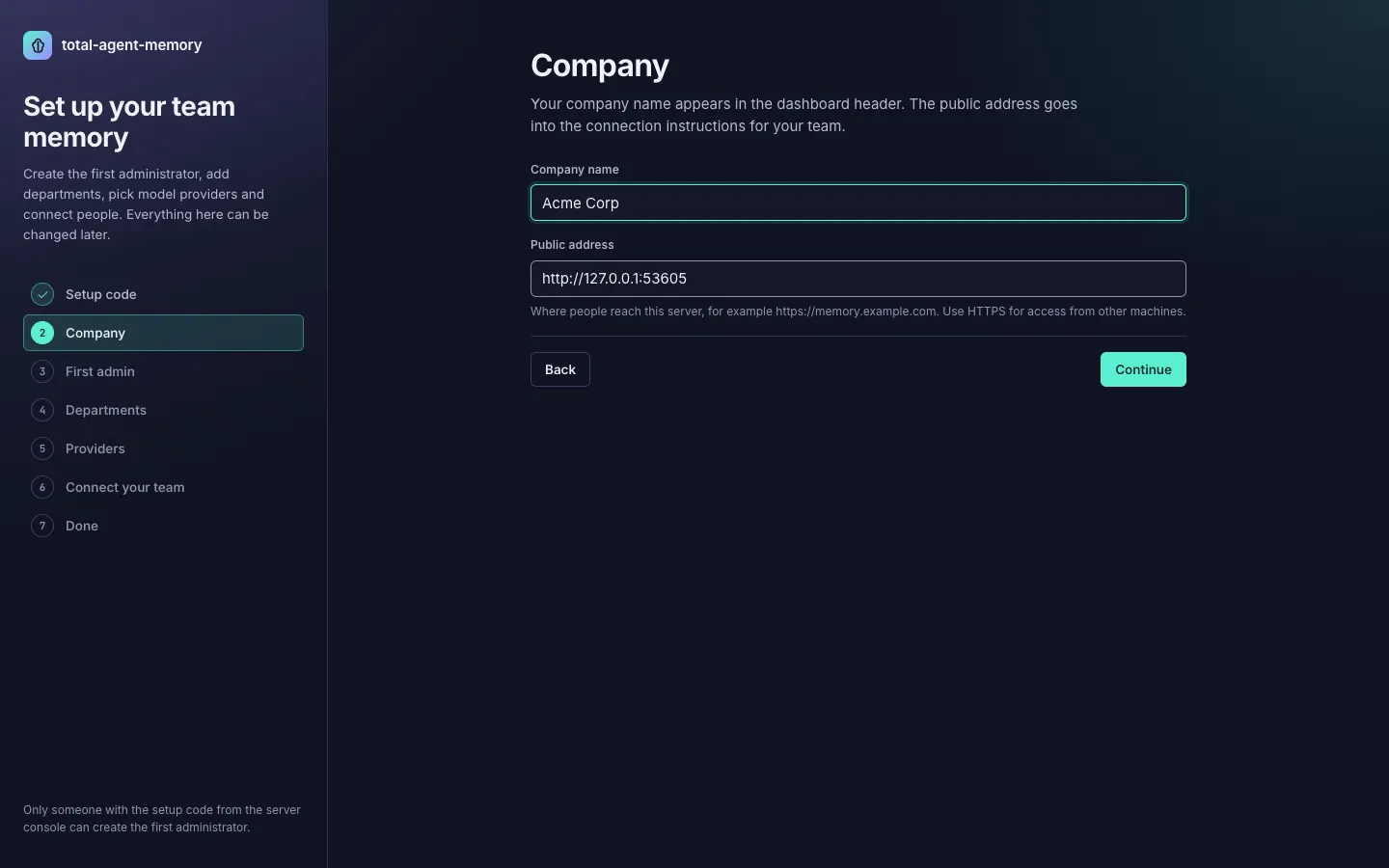
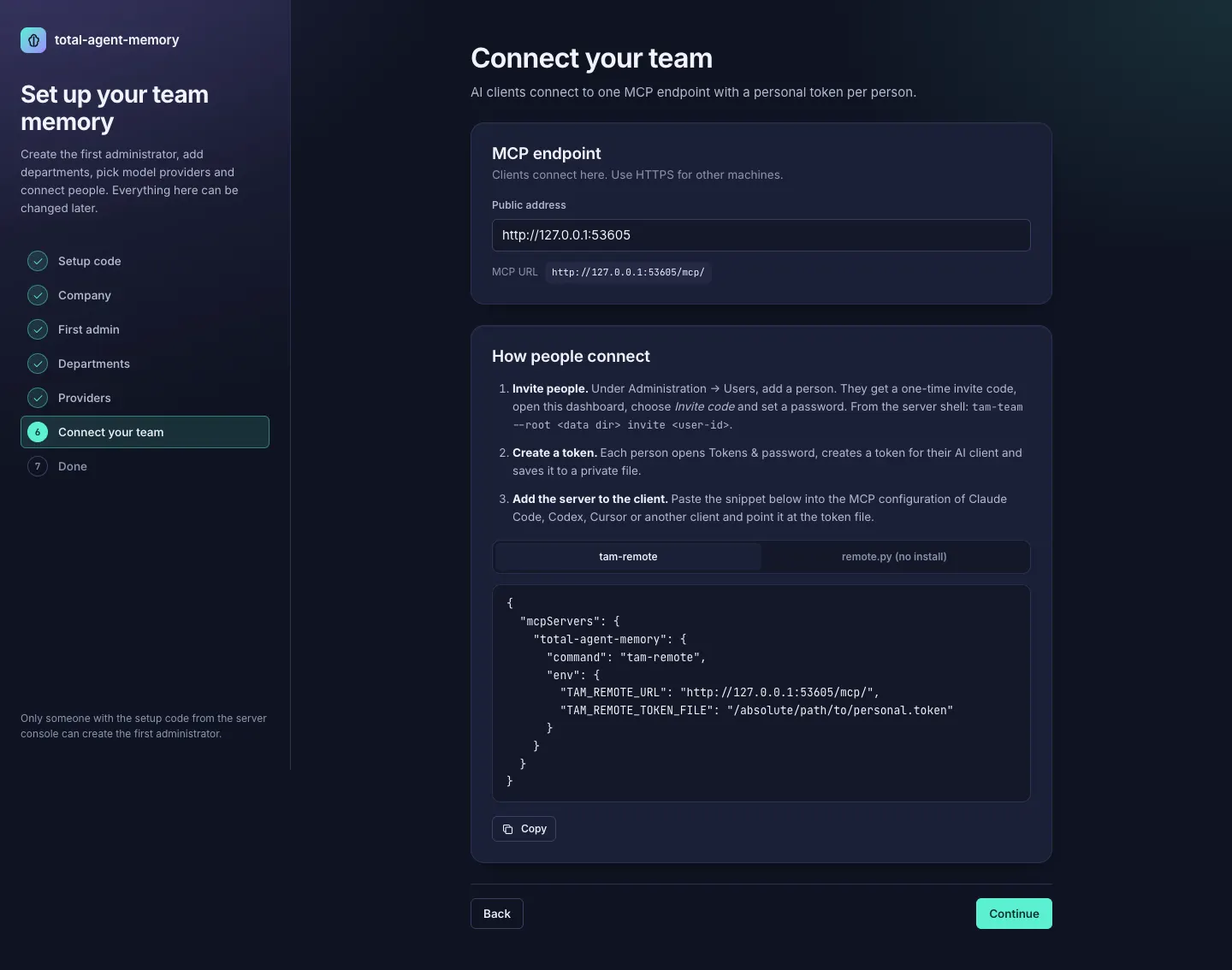
The wizard has seven steps: Setup code, Company (name and public address), First admin (user ID, full name and a password of 12 or more characters; submitting signs you in), Departments, Providers (the dashboard’s provider cards), Connect your team (the MCP URL, how invites and tokens work, and a copyable tam-remote or remote.py snippet) and Done. If you close the page before Done, the next superadmin sign-in resumes at Departments. The company name and public address can be edited later under Administration → System.
How the setup code is protected:
- 24 characters (120 bits). Only its SHA-256 digest is stored.
- Expires after 60 minutes by default (
TAM_TEAM_SETUP_TOKEN_TTL_MINUTES). - Single use. Creating the administrator claims the code in the same transaction, so a second attempt with it fails, even a concurrent one. If the chosen user ID already exists, nothing changes and the code stays valid.
- New code: restart the server or run
tam-team --root <data dir> setup-token. A new code voids the old one. - Lockout: 5 wrong codes from one IP, or 50 from all IPs together, within 15 minutes lock setup for 15 minutes, even for a correct code. Lockouts are written to the audit log.
- Once a superadmin exists, the setup endpoints return 404 and no code is issued. Creating the administrator with
tam-team bootstrap-admincloses setup the same way. - The setup pages use the dashboard’s protections: JSON bodies only, cross-origin requests rejected, the same strict Content-Security-Policy.