For companies
New in 14.6.0Web dashboard
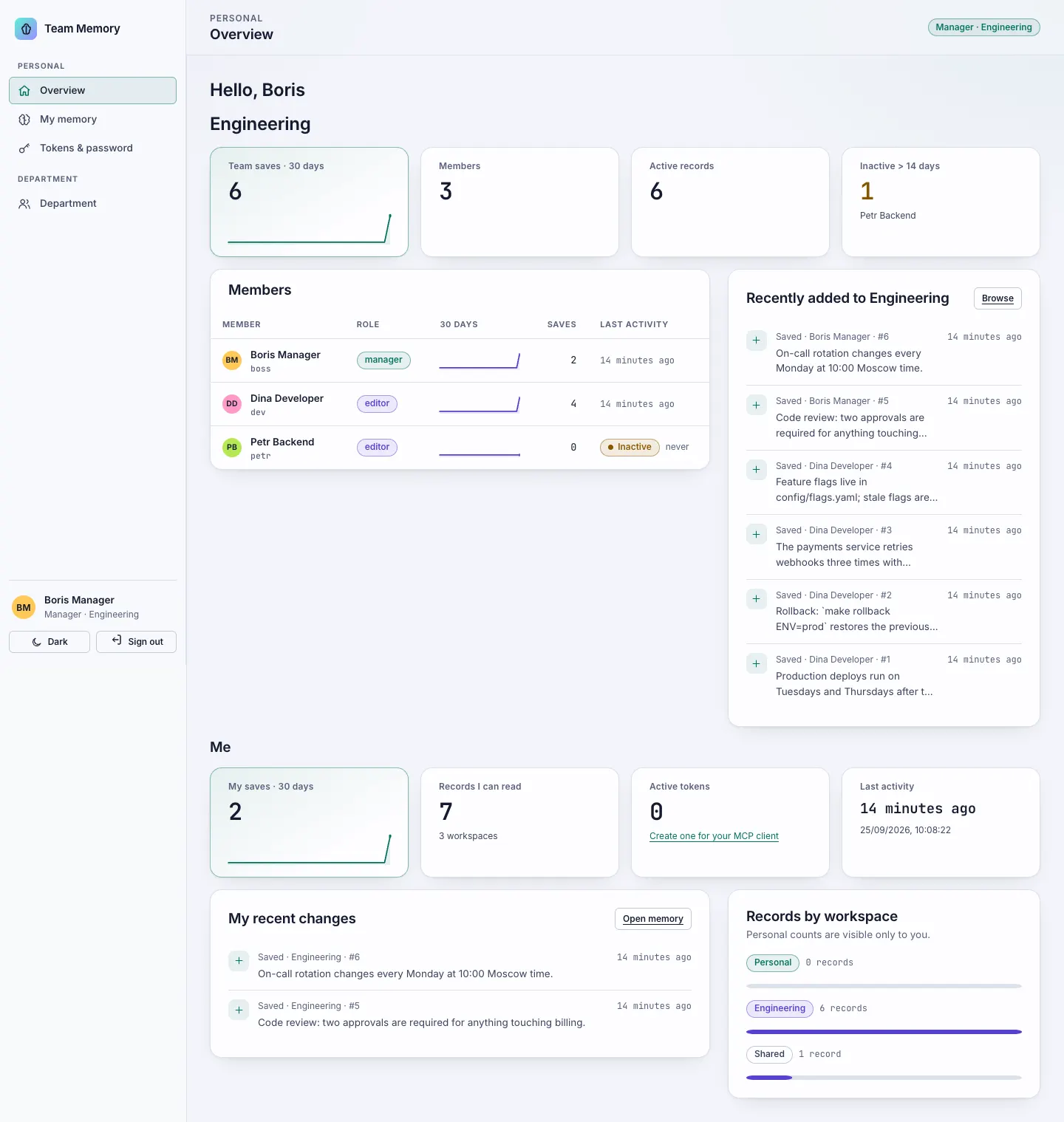
A browser dashboard for the team server. People sign in with a one-time invite code and their own password; superadmins run users, departments, tokens, the audit log and model providers from it.
The team server serves the dashboard at /dashboard/ on the same port as /mcp/. MCP clients do not change: agents keep using personal Bearer tokens on /mcp/ as described in Connect employees. The older token-only page at / is still served and links to the dashboard.
First start
Create the first superadmin on the server. The command prints a one-time invite code:
tam-team --root /srv/tam-team bootstrap-admin alice 'Alice Admin'
# Invite code for alice: 7KQ2-M9XD-...   Valid until ...; single use.
tam-team --root /srv/tam-team serve --host 127.0.0.1 --port 3738
Open https://memory.example.com/dashboard/ (or http://127.0.0.1:3738/dashboard/ on the server itself), choose Use invite code, and enter the user ID, the code and a new password. bootstrap-admin refuses to run if an active superadmin already exists.
With Docker Compose, run the same subcommands through docker compose -f docker-compose.team.yml run --rm team-memory python /app/src/team_memory/cli.py ….
Roles
Each user has one organisation role and, per department, one department role.
| Organisation role | What it adds |
|---|---|
member (default) | Own memory (search, save, edit, history), own tokens, own password |
company_viewer | Read-only access to every department: member list, activity and team memory |
superadmin | Everything above, plus users, departments, memberships, all tokens, the audit log and provider settings |
| Department role | Team memory | People & activity | Curriculum (onboarding) |
|---|---|---|---|
reader | read | – | – |
editor | read and write | – | – |
manager (department head) | read and write | yes, own departments only | yes |
Rules that always hold:
- Personal memory is private to its owner. Nobody else can read it through the dashboard or MCP, superadmins included.
- Company viewers and superadmins can read any team’s memory, but write only where they are an editor or manager. This oversight access does not widen what their MCP clients search:
memory_scopesand unscopedmemory_recallstill cover only their own memberships. - The server refuses to disable or demote the last active superadmin.
Sections per role
The sidebar groups sections into Personal, Department, Company and Administration and shows only what the user may open. Every API checks permissions again on its own.
| Group | Section | Who sees it |
|---|---|---|
| Personal | Overview | everyone |
| Personal | My memory | everyone |
| Personal | Reports | everyone: personal reports; department and company reports for heads, company viewers and superadmins (memory_report) |
| Personal | Onboarding | everyone; the Department and Company tabs follow the roles below (details) |
| Personal | Tokens & password | everyone |
| Department | Department | managers of at least one department, company viewers, superadmins |
| Company | Company | company viewers, superadmins |
| Administration | Users | superadmins |
| Administration | Departments | superadmins |
| Administration | Access tokens | superadmins |
| Administration | Audit log | superadmins |
| Administration | Providers | superadmins |
| Administration | System | superadmins |
The header shows the user’s actual scope: Superadmin, Company viewer, Manager · Engineering, Editor · Engineering, or Member for a user without a department. The dashboard has dark and light themes; the default follows the operating system, and the sidebar toggle remembers the choice in the browser. Below 900 px the sidebar becomes a drawer, and on phone-width screens tables turn into stacked rows.
Overview pages
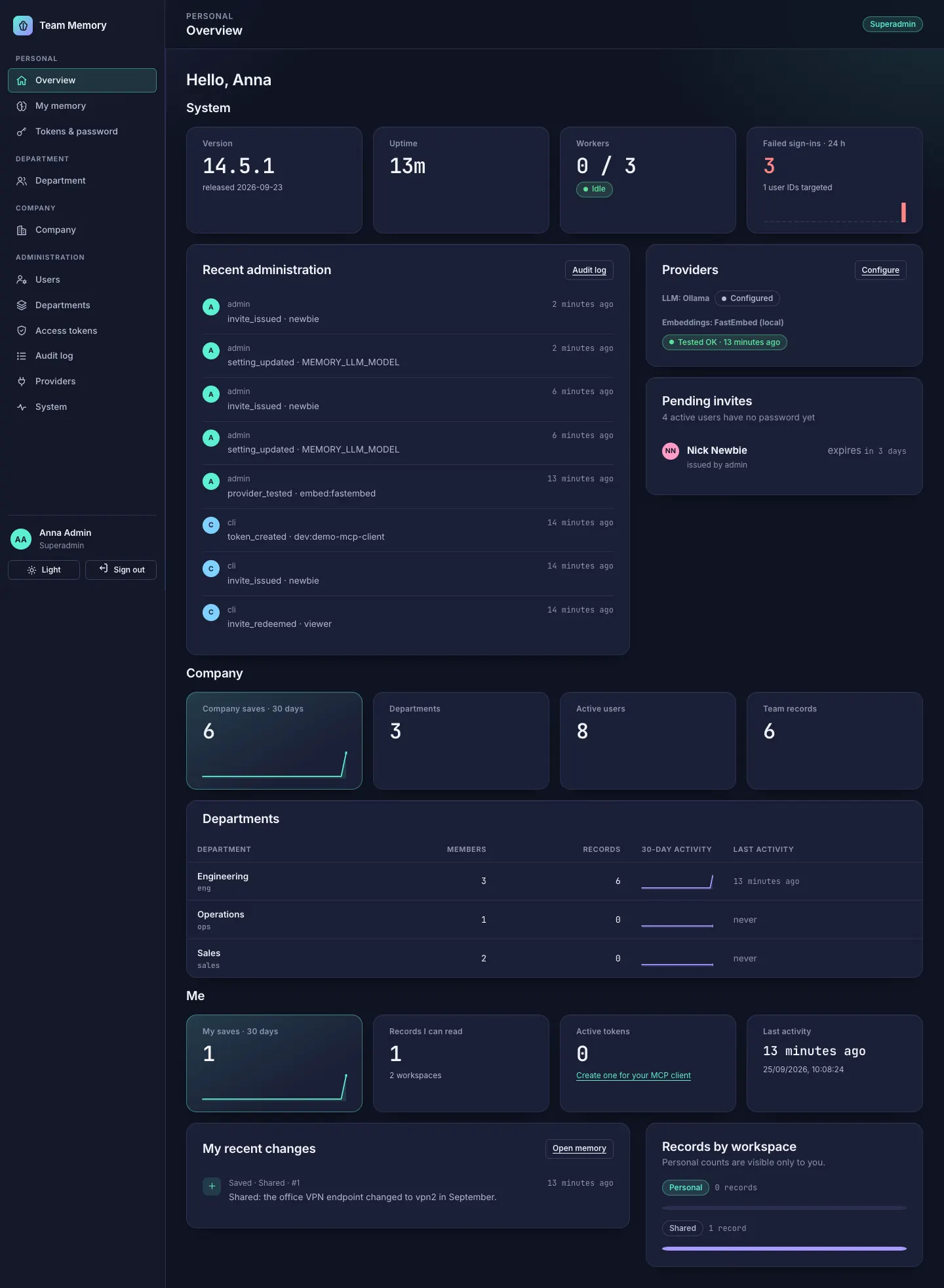
Overview is the landing page for every role. It stacks the blocks the user is entitled to:
| Block | Who | Shows |
|---|---|---|
| Me | everyone | own records per workspace (the personal count only to its owner), own saves over 30 days, last activity, active tokens, recent own changes |
| Department | manager of that department, company viewer, superadmin | members with 30-day save sparklines, members inactive for more than 14 days, active record count, recently added team records |
| Company | company viewer, superadmin | departments with members, records, 30-day activity and last activity; company-wide 30-day trend |
| System | superadmin | version, uptime, workers (running / max / busy), active providers with their last test, pending invites, recent audit events, failed sign-ins in the last 24 hours |
The statistics are read from each workspace database in read-only mode; showing them does not start workspace processes. Sign-in attempts are kept for 30 days.
Invites, passwords and sessions
Invites. A superadmin creates a user in Administration → Users (or with the CLI) and gets a one-time invite code, shown once in a dialog with a copy button and its expiry.
- The code is 20 characters (100 bits), stored only as a SHA-256 digest.
- It expires after
TAM_TEAM_INVITE_TTL_HOURS(default 72), works once, and issuing a new code voids any earlier unused one. - Password reset is the same flow: a superadmin issues a new invite code (
tam-team invite <id>or the user’s row menu).
Passwords. The employee redeems the code with their user ID and a password of 12–256 characters. Passwords are hashed with scrypt and a per-user salt and compared in constant time. Redeeming a code signs out all of that user’s other sessions. Users who know their password change it under Tokens & password, which also signs out their other sessions. Unknown users and wrong passwords get the same error and a similar response time.
Token sign-in. A user can also sign in with a personal token. That session ends as soon as the token is revoked.
Sessions.
- Stored on the server; the browser holds only a random session ID in an
HttpOnly,SameSite=Strictcookie (__Host-tam_sessionover HTTPS). - Expire after 30 idle minutes (
TAM_TEAM_SESSION_IDLE_MINUTES) and 12 hours in total (TAM_TEAM_SESSION_MAX_HOURS). Signing out deletes the server-side session; disabling a user deletes all of theirs. - State-changing requests need a per-session CSRF token and a JSON body; requests whose
Origindoes not matchHostare rejected.
Lockout. Five failures (TAM_TEAM_LOGIN_MAX_FAILURES) for one user from one IP within 15 minutes lock that pair for TAM_TEAM_LOGIN_LOCK_MINUTES (default 15). Separately, 30 failures from one IP across all users lock that IP. Invite redemption, token sign-in and password changes share the same limiter, and lockouts are written to the audit log.
Behind a reverse proxy
| Variable | Default | Meaning |
|---|---|---|
TAM_TEAM_COOKIE_SECURE | auto | auto marks the cookie Secure when the request arrived over HTTPS; always / never force it. |
TAM_TEAM_TRUST_PROXY | false | Honour X-Forwarded-Proto and the last hop of X-Forwarded-For. Set to true only when a proxy you control overwrites those headers, as in the nginx example. |
Without TAM_TEAM_TRUST_PROXY=true, a TLS-terminating proxy looks like plain HTTP to the server: with auto the cookie is not marked Secure, and every sign-in appears to come from the proxy’s IP, so the per-IP lockout counts all users together.
Provider settings
Administration → Providers edits the model settings TAM reads, for the whole server:
| Group | Settings |
|---|---|
| Language model | MEMORY_LLM_ENABLED, MEMORY_LLM_PROVIDER (ollama, openai, openai-compatible, anthropic, auto), MEMORY_LLM_MODEL, MEMORY_LLM_API_BASE, OLLAMA_URL, MEMORY_LLM_TIMEOUT_SEC, MEMORY_LLM_API_KEY, OPENAI_API_KEY, ANTHROPIC_API_KEY |
| Embeddings | MEMORY_EMBED_PROVIDER (fastembed, openai, cohere, dashscope), MEMORY_EMBED_MODEL, MEMORY_EMBED_API_BASE, MEMORY_EMBED_API_KEY, COHERE_API_KEY, DASHSCOPE_API_KEY, MEMORY_EMBED_DIMENSIONS |
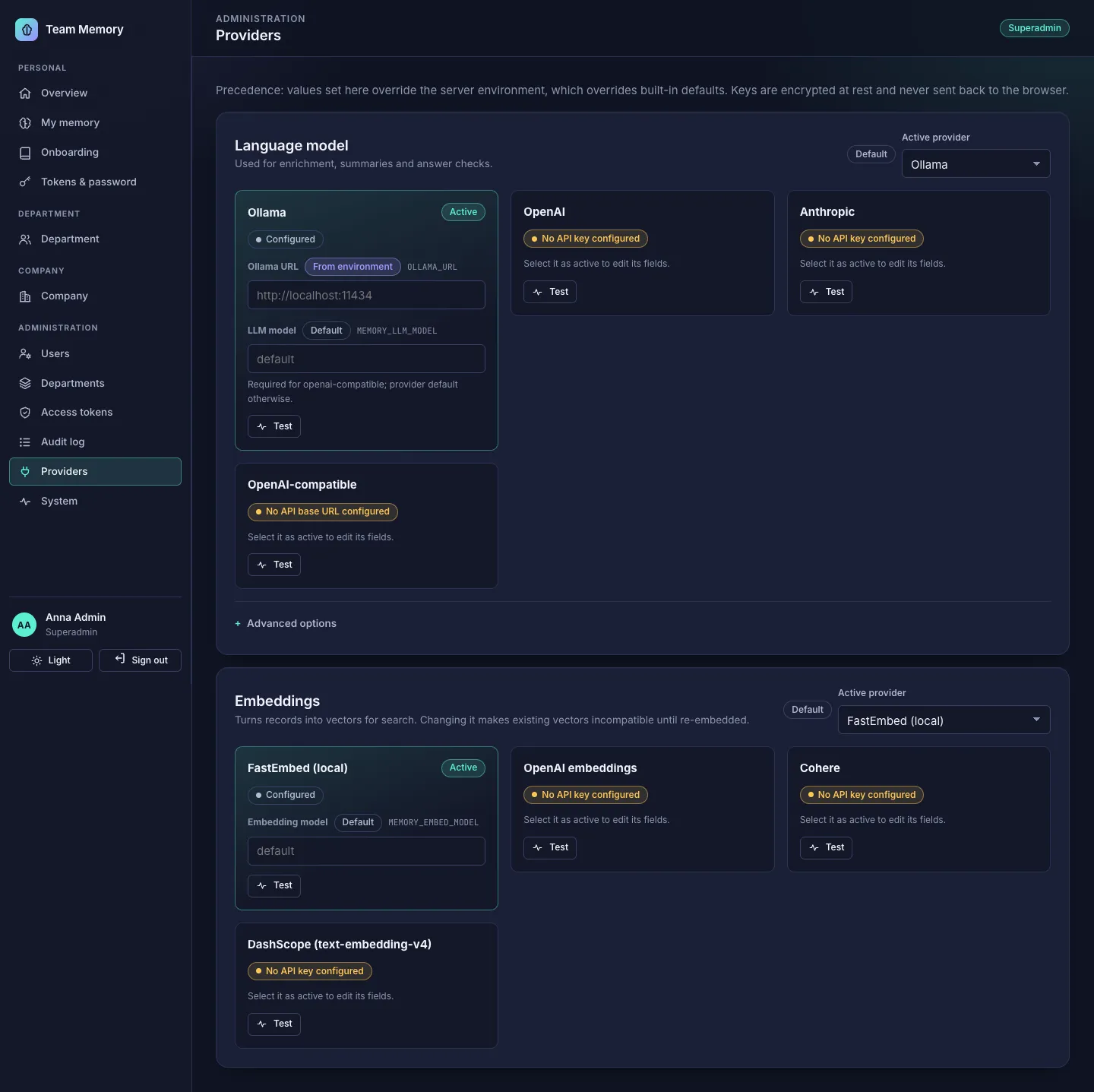
Precedence: a value set in the dashboard, then the server’s environment or .env, then the built-in default. Dashboard values are exported under the same variable names, so TAM’s own rules still apply on top (for example, MEMORY_LLM_API_KEY beats OPENAI_API_KEY wherever it is set). Each field shows its source (Set here, From environment or Default). Remove clears the dashboard value so the environment value applies again.
Provider cards. There is one card per provider TAM supports. The Active provider select shows the editable fields for the chosen one only. Each card has a status pill (not configured, configured, tested OK, or error, with the time) and its own Test button. A test makes one GET with an 8-second timeout and no redirects (/models for OpenAI-compatible, Anthropic and DashScope, /api/tags for Ollama, /v1/models for Cohere) and reports OK, a status class, “timed out” or “connection failed”, never the key or response body. FastEmbed is local and needs no test.
DashScope (text-embedding-v4) has its own card with four fields: DASHSCOPE_API_KEY (a secret, handled like the other keys), MEMORY_EMBED_MODEL, MEMORY_EMBED_API_BASE (the international endpoint by default; use the Beijing endpoint for a Beijing-region key) and MEMORY_EMBED_DIMENSIONS (1024 by default). See Configuration for allowed values.
Keys. Keys are never sent back to the browser. A card shows only set / not set, the source and, for keys of 12 or more characters, the last four characters. Changing a key is an explicit Replace key action.
Applying. Pending changes collect in a sticky bar, and saving asks for confirmation because it restarts the workspace workers. Running operations are not interrupted; new workers start with the new settings. Changing the embedding provider or model makes existing vectors incompatible until each workspace is re-embedded.
The master key
API keys entered in the dashboard are stored encrypted (Fernet) in identity.db. The encryption key comes from:
TAM_TEAM_MASTER_KEY, if set (a URL-safe base64 Fernet key), otherwise<data directory>/master.key, created with mode0600on first start. The server refuses to start if that file is readable by group or others.
Back up the master key separately from the data. Backups copy identity.db with the encrypted values but not master.key. After a restore with a different key, the affected settings show set, but unreadable and must be entered again. Keep the key where someone who steals a backup cannot also reach it, such as your secrets manager.
With Docker Compose, master.key is created inside the data volume (/team-data/master.key). Copy it out once, or set TAM_TEAM_MASTER_KEY in .env from your secrets manager.
Audit log
Every administrative action (users, roles, departments, memberships, invites, tokens, provider settings and tests, lockouts) is recorded with the acting user (cli for commands run on the server) and the time. Secret values are never written to it. Administration → Audit log filters by actor, action prefix and subject. Changes to memory records stay in each record’s history, visible through memory_history.
Backups and metrics
Backups need exclusive access to every database, which the running server holds. The dashboard therefore shows the offline command instead of running a backup: stop the server, then run tam-team --root <data directory> backup --out <dir>. See Backup & restore.
The server has no Prometheus endpoint. It keeps in-process counters (sign-ins, admin actions, CSRF rejections, HTTP requests with a latency histogram per route class, memory calls) and writes them as structured JSON log lines. Superadmins see the counters under Administration → System.
CLI commands
All commands take --root <data directory> (default $TAM_TEAM_DIR or ~/.tam-server).
| Command | Purpose |
|---|---|
tam-team bootstrap-admin <id> <name> | Create the first superadmin and print an invite code. Refuses if an active superadmin exists. |
tam-team invite <id> | Issue a new one-time invite code; doubles as a password reset. |
tam-team user-role <id> <role> | Set the organisation role: member, company_viewer or superadmin. |
tam-team member <user> <team> <role> | Set the department role: reader, editor, manager, or remove. |
tam-team user-add <id> <name> | Create a user. |
tam-team team-add <id> <name> | Create a department. |
tam-team token-create <user> --client <label> --out <file> | Issue a personal MCP token. |
tam-team token-revoke --file <file> | Revoke a token. |
tam-team backup --out <dir> / restore --from <dir> | Offline backup and restore. |
tam-team serve [--host] [--port] | Run the server. |
Examples:
tam-team --root /srv/tam-team user-role bob company_viewer
tam-team --root /srv/tam-team invite bob
tam-team --root /srv/tam-team member bob sales manager